
How to Type Roman Urdu on Mobile
You can How to Type Roman Urdu on Mobile phone with a regular English or QWERTY keyboard. You do not need a special Roman Urdu keyboard or Urdu script keyboard. Simply open any app with a text box, such as WhatsApp or Messages, and tap the text field to open your keyboard. Then type Urdu words using English letters based on how they sound. For example, you can write “Aap kaise hain?”, “Mujhe ghar jana hai,” or “Kal aap kahan ja rahe hain?” Once you finish typing, check your message and tap Send. Your text will stay in Roman Urdu because you typed it with Latin letters.
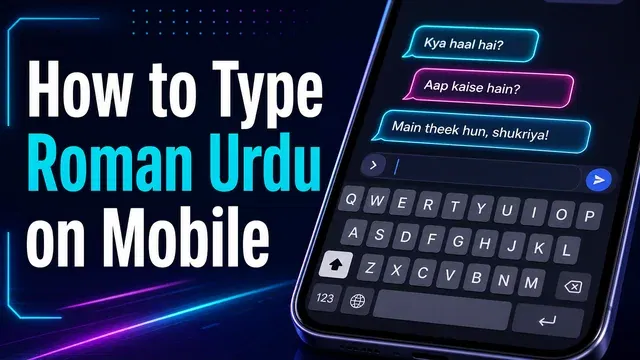
The key is to How to Type Roman Urdu on Mobile language phonetically instead of using Urdu characters. For example, “Mujhe samajh nahi aa rahi” remains Roman Urdu, while “مجھے سمجھ نہیں آ رہی” uses Urdu script. You only need an Urdu keyboard when you want to type Urdu characters. Some mobile keyboards also offer Urdu transliteration, which turns English-letter input into Urdu script. That feature serves a different purpose. If your goal is simply to write Roman Urdu, your regular English keyboard is enough.
How to Type Roman Urdu on Android
How to Type Roman Urdu on Mobile on Android is simple. You can use Gboard, Samsung Keyboard, or another QWERTY keyboard. You do not need to enable an Urdu keyboard if you want the final text to stay in Roman Urdu. Open your messaging app, tap the text box, and use English letters to type Urdu words by sound. For example, type “Aap kaise hain?” or “Mujhe ghar jana hai.” Then send the message as usual.
Using Gboard on Android
Google’s official Gboard instructions confirm that you can add keyboard languages and layouts without changing your phone’s main language. To set up Gboard, open an app where you can type and tap the text field. Open Gboard Settings, select Languages, and add the language or layout you need. You can then switch between enabled languages by holding the space bar. Gboard also lets you show a language-switch key when needed.
For basic Roman Urdu typing, however, you can keep your English QWERTY layout active. Type your Urdu words with Latin letters. You do not need to convert them into Urdu script. This keeps the process quick when you mainly write Roman Urdu in WhatsApp, Messages, or social media.
Using Samsung Keyboard
Samsung Galaxy phones include the Samsung Keyboard as the default keyboard on many devices. You can manage its languages from Settings → General management → Samsung Keyboard settings → Languages and types → Manage input languages. Samsung also lets you switch between enabled languages using the language key or the space bar.
If you only want Roman Urdu, keep the English keyboard layout active. Then type Urdu words with English letters. You can still add Urdu as another keyboard language if you also need to write in Urdu script.
Other Android Phones
Android phones can use different keyboard apps and settings. Your phone may use Gboard, Samsung Keyboard, or another default keyboard. The exact menu names can vary by Android version, phone brand, and keyboard app. Samsung also notes that some keyboard screens vary by device and software version.
Look for settings such as Keyboard, On-screen keyboard, Languages, or Input languages. You can then select your preferred keyboard and switch between available layouts.
Roman Urdu Typing vs Urdu Transliteration
These two methods can look similar but produce different results. How to Type Roman Urdu on Mobile keeps your message in Latin letters. Urdu transliteration uses Latin letters as input but converts them into Urdu script.
For example:
Roman Urdu: Mujhe kal ghar jana hai.
Urdu transliteration output: مجھے کل گھر جانا ہے۔
So, if your goal is Roman Urdu typing on Android, you do not need an Urdu transliteration feature. Your regular English QWERTY keyboard is enough. Use Urdu transliteration only when you want your final message to appear in Urdu script.
How to Type Roman Urdu on iPhone
You can How to Type Roman Urdu on Mobile on an iPhone with the regular English keyboard. You do not need a special Roman Urdu keyboard. Open any app with a text field and use English letters to type Urdu words by sound. For example, you can type “Aap kaise hain?” or “Mujhe ghar jana hai.” Your message will remain in Roman Urdu when you send it. Apple lets you add and switch between different keyboards from Settings → General → Keyboard → Keyboards. You can also switch keyboards while typing by holding the Emoji or Switch Keyboard key.
Using the Apple Keyboard
For simple How to Type Roman Urdu on Mobile, keep the English QWERTY keyboard active. Type Urdu words with Latin letters based on their pronunciation. You do not need to add Urdu just to write Roman Urdu. If you also write Urdu script, you can add an Urdu keyboard through Settings → General → Keyboard → Keyboards → Add New Keyboard. Apple supports different keyboard layouts for supported languages.
Using Gboard on iPhone
You can also use Gboard for iPhone. Google supports Gboard on iPhones running iOS 9 or later. After installing it, go to Settings → General → Keyboard → Keyboards and add Gboard. You can then choose Gboard while typing. Google also lets you add languages inside the Gboard app and switch between them with the Globe key.
Gboard also includes features such as autocorrection and voice input. These features can help with regular typing, but they are not required for Roman Urdu.
Switching Between Keyboards
If you use English, Urdu, and another keyboard, you can switch between them while typing. Touch and hold the Globe or Switch Keyboard key, then choose the keyboard you need. The exact icon can vary with your keyboard setup.
Roman Urdu vs Urdu-Script Input
The keyboard you choose does not automatically determine whether your text becomes Roman Urdu or Urdu script. The input method and keyboard layout matter.
For example:
Roman Urdu: Mujhe kal ghar jana hai.
Urdu script: مجھے کل گھر جانا ہے۔
Roman Urdu uses the Latin alphabet. Urdu script uses Urdu characters. Some keyboard tools can use phonetic input and produce Urdu script, but that serves a different purpose.
So, if you want to type Roman Urdu on iPhone, your normal English keyboard is enough. Add an Urdu keyboard only when you also need to write in Urdu script.
Current iOS screenshots can strengthen this section. Use screenshots from a real iPhone showing Settings → General → Keyboard → Keyboards and the keyboard-switching screen. Label the iOS version and iPhone model used during testing. That adds first-hand usefulness without making unsupported claims.
Roman Urdu vs Urdu Transliteration
Roman Urdu and Urdu transliteration often look similar, but they have different results. Roman Urdu means writing Urdu with Latin letters. For example, you might write “Mujhe kal ghar jana hai.” The sentence remains in Roman Urdu when you send it. Informal Roman Urdu usually uses the regular English alphabet and does not follow one fixed spelling system.
Urdu transliteration works differently. You type Urdu words with Latin letters, but the tool converts your input into Urdu script. For example:
Roman Urdu:
Mujhe kal ghar jana hai.
Urdu script:
مجھے کل گھر جانا ہے۔
The words keep the same meaning, but the writing system changes. Current Urdu typing tools commonly use this method. You type words such as mera naam Ali hai, then the tool produces Urdu script.
This distinction matters because many Urdu typing tools use Roman Urdu as an input method. They do not treat Roman Urdu as the final text. For example, phonetic Urdu tools can turn English-letter input into Urdu characters as you type. Some tools even convert each word after you press the space bar.
So, when someone searches for “how to type Urdu using English letters,” they may want Urdu transliteration. They may want to type aap kaise hain and get آپ کیسے ہیں. But someone searching for “how to type Roman Urdu on mobile” may simply want to keep Aap kaise hain? as the final message.
The easiest way to remember the difference is simple: Roman Urdu changes the script of Urdu into Latin letters. Transliteration changes Latin-letter Urdu input back into Urdu script. Your choice depends on how you want the final message to look.
How to Type Roman Urdu in WhatsApp and Social Media
You can How to Type Roman Urdu on Mobile in almost any app that accepts text. WhatsApp, Messenger, Instagram, Facebook, SMS, and Gmail all let you enter Roman Urdu with a regular mobile keyboard. You do not need a separate Roman Urdu app because Roman Urdu uses the Latin alphabet. Open the app, tap the message or text box, and type Urdu words with English letters. For example, you can write Aap kahan ho?, Main ghar ja raha hoon, or Kal milte hain. Then send or post the text normally.
Open a WhatsApp chat and tap the message box. Keep your English or QWERTY keyboard active. Type your Urdu message using Latin letters, then tap Send. WhatsApp does not require a special Roman Urdu keyboard for this process.
Messenger
The same method works in Facebook Messenger. Tap the message field and type your Roman Urdu with English letters. Your text stays in Roman Urdu unless your keyboard changes or converts the input.
Instagram and Facebook
You can use Roman Urdu in Instagram captions, comments, direct messages, and Facebook posts. Type directly into the available text field with your regular keyboard. You can also mix Roman Urdu with English when needed.
For example:
Aaj weather bohat acha hai. Chalo bahar chalte hain.
SMS and Gmail
Roman Urdu also works in regular SMS messages and Gmail. Type your message with the same English keyboard you use for normal English text. The receiving person will see the Latin characters you entered.
Do You Need a Roman Urdu App?
Usually, no. Roman Urdu is simply Urdu written with Latin characters, so a standard mobile keyboard can handle it. You only need another keyboard or typing tool when you want extra features, such as Urdu-script transliteration, Urdu characters, voice typing, or spelling assistance.
This also explains why Roman Urdu works across many platforms. The apps mainly handle the text you enter. Your phone’s keyboard and input method determine how you create that text.
Roman Urdu Spelling and Typing Rules
How to Type Roman Urdu on Mobile does not have one fixed spelling system. People often spell the same Urdu sound in different ways. Your main goal should be clear and readable writing. Phonetic patterns can make typing easier, especially when you want to represent Urdu sounds with English letters.
Here are some common patterns:
| Roman Urdu | Urdu sound | Example |
| kh | خ | khana |
| sh | ش | sham |
| ch | چ | chai |
| gh | غ | ghalat |
| bh | بھ | bhai |
| ph | پھ | phool |
These patterns help you represent sounds that English does not have as single letters. For example, kh commonly represents خ, while sh represents ش. Similarly, ch represents چ in many Roman Urdu spellings.
Common Roman Urdu Spelling Variations
Informal How to Type Roman Urdu on Mobile often has several accepted spellings. The word نہیں may appear as:
nahi / nahin / nhi
All three can communicate the same word in casual messages. People choose spellings based on habit, pronunciation, keyboard speed, or personal preference.
You may also see differences in vowel spelling. One person might write a word with aa, while another uses a. These differences do not always change the intended meaning.
How to Type Roman Urdu on Mobile has no single universally correct informal spelling standard. Consistency and readability matter more than strict spelling rules. If your reader can understand the word easily, your spelling works well for casual communication.
For faster mobile typing, use familiar patterns and avoid spellings that make words difficult to recognize. This approach keeps Roman Urdu natural across WhatsApp, SMS, social media, and other messaging apps.
Common Roman Urdu Keyboard Problems
How to Type Roman Urdu on Mobile can cause problems when your keyboard expects standard English or Urdu input. Autocorrect, language settings, suggestions, and voice typing can change what you intended to write. The fix usually involves checking your keyboard language and text correction settings.
Why Is My Keyboard Changing Roman Urdu?
Your keyboard may treat Roman Urdu words as English words. It can then replace unfamiliar spellings with words from its dictionary. This often happens with informal spellings that are not common in English.
For example, you might type nahi, but the keyboard may suggest another word. Gboard lets you manage Text correction and suggestions from its settings.
If the keyboard keeps changing your words, review its autocorrect and suggestion settings. You can also add frequently used words to Gboard’s dictionary.
Why Is Autocorrect Changing My Words?
Autocorrect checks your text against the keyboard’s language data. Roman Urdu does not follow one fixed informal spelling system. Your keyboard may therefore treat some words as spelling mistakes.
On iPhone, go to Settings → General → Keyboard to manage Auto-Correction and Predictive Text. Apple confirms that Auto-Correction uses the keyboard dictionary to correct words while you type.
If autocorrect keeps changing Roman Urdu, turn it off while writing Roman Urdu. You can also undo individual corrections when the keyboard changes a word.
Why Does Roman Urdu Become Urdu Script?
This usually happens when you enable an Urdu transliteration layout or keyboard feature. Transliteration uses Latin letters as input but produces Urdu characters.
For example:
Mujhe ghar jana hai.
can become:
مجھے گھر جانا ہے۔
That is useful when you want Urdu script. It is not the same as keeping your message in Roman Urdu.
If you want Roman Urdu, switch back to your regular English QWERTY keyboard. On Gboard, you can change active languages by holding the space bar.
Why Aren’t My Suggestions Correct?
Keyboard suggestions depend on the active language and available language data. Roman Urdu uses informal spellings, so predictions may not match your writing style.
First, check which keyboard language you have selected. Then check your suggestion settings. Gboard provides controls for suggestions under Settings → Text correction.
If suggestions remain poor, type the word manually instead of accepting the first prediction. Accuracy matters more than saving one tap.
How Do I Switch Back to English?
If your keyboard suddenly shows Urdu characters or another layout, switch to your English keyboard.
On Gboard, touch and hold the space bar to switch between active languages. You can also enable the language-switch key in Gboard settings.
On iPhone, touch and hold the Emoji or Switch Keyboard key. Then choose the keyboard you want. Apple provides keyboard controls under Settings → General → Keyboard → Keyboards.
What If Voice Typing Produces the Wrong Script?
Voice typing can select a language based on your keyboard or voice-input settings. It may also misunderstand Roman Urdu words because informal Roman Urdu has many spelling variations.
If voice input produces the wrong language or script, check your active keyboard and voice-input language first. Gboard provides separate settings for Voice typing and keyboard languages.
For important messages, review the generated text before sending it. Voice typing can save time, but manual correction still matters.
Quick Fix Checklist
If How to Type Roman Urdu on Mobile is not working correctly, check these settings:
- Use an English QWERTY layout for plain Roman Urdu.
- Check the active keyboard language.
- Review Auto-Correction settings.
- Check predictive text and suggestions.
- Switch off Urdu transliteration if it changes your text into Urdu script.
- Review voice-input language when using dictation.
- Check the final message before sending it.
These fixes cover most common problems without requiring a separate Roman Urdu app.
Best Ways to Type Roman Urdu: Keyboard, Transliteration and Voice
The right typing method depends on what you want to produce. If you want pure Roman Urdu, a normal QWERTY keyboard is enough. If you want Urdu script, you need a different input method. Voice input can also help when you want hands-free typing.
Normal QWERTY Keyboard
A standard QWERTY keyboard works well for pure Roman Urdu. You type Urdu words with Latin letters and keep the final text in the same script. You do not need a separate Roman Urdu keyboard.
For example, you can type “Mujhe kal ghar jana hai.” The text remains in Latin letters. This method also works across WhatsApp, Instagram, Messenger, SMS, email, and other apps.
It gives you direct control over Roman Urdu spelling. That matters because Roman Urdu does not follow one universal spelling system.
Gboard
Gboard is useful if you regularly switch between languages. Google lets Android users add multiple keyboard languages and layouts. You can switch languages by holding the space bar.
For Roman Urdu, you can still use the regular QWERTY layout. You only need another language layout when you want different characters or Urdu-script input.
Gboard also works on iPhone and iPad. You can add languages and switch between them with the Globe key.
Microsoft SwiftKey
SwiftKey is useful when you need Urdu transliteration rather than plain Roman Urdu. Microsoft currently documents Urdu transliteration for SwiftKey on Android. It lets you type phonetically with a Latin or QWERTY layout and select matching Urdu-script predictions.
For example, Latin input can produce an Urdu-script suggestion. This makes SwiftKey useful for people who know Urdu pronunciation but prefer English-letter input.
SwiftKey also supports many languages and allows multiple languages on Android.
Remember the key difference: SwiftKey transliteration can produce Urdu script. Plain Roman Urdu typing keeps your text in Latin letters.
Urdu Keyboard
An Urdu keyboard is designed for Urdu-script typing. It is useful when you need text such as “مجھے اردو لکھنی ہے۔”
This method differs from Roman Urdu typing. You work with Urdu characters instead of English letters.
Use an Urdu keyboard for formal Urdu documents, Urdu posts, or messages that require Urdu script. For simple Roman Urdu chats, a regular QWERTY keyboard is usually enough.
Browser Tool
A browser-based Urdu typing or conversion tool can help with occasional work. These tools often accept Roman or phonetic input and convert it into Urdu script.
This option suits users who rarely type Urdu. It can also help when you need to convert existing Roman Urdu into Urdu script.
However, check the output before copying it. Roman Urdu spelling varies, so automated conversion may not always match your intended Urdu word.
Voice Input
Voice input is useful when typing feels slow or difficult. You speak into the microphone, and the keyboard converts your speech into text.
Gboard supports voice input, although Google notes that talk-to-text does not work with every language. SwiftKey also provides integrated voice typing on supported devices.
Voice input does not automatically mean the result will be Roman Urdu. The output depends on the language and speech-input settings. Always review the text before sending it.
Which Method Fits Your Need?
| Method | Best for |
| Normal QWERTY | Pure Roman Urdu |
| Gboard | Multilingual typing |
| SwiftKey | Urdu transliteration on Android |
| Urdu keyboard | Urdu-script typing |
| Browser tool | Occasional conversion |
| Voice input | Hands-free typing |
The main point is simple: choose the method based on the output you need. Use a QWERTY keyboard when you want Roman Urdu to stay in Latin letters. Use transliteration when you want Latin input to produce Urdu script. Use voice input when speaking is more convenient than typing.

FAQs
Can I Type Roman Urdu Without an App?
Yes. You can How to Type Roman Urdu on Mobile with your phone’s normal QWERTY keyboard. You only need Latin letters to write Urdu words.
Can I Type Roman Urdu on Android?
Yes. Android phones can type Roman Urdu with a standard English keyboard. Gboard, Samsung Keyboard, and other keyboards can handle Latin-letter text.
Can I Type Roman Urdu on iPhone?
Yes. The built-in iPhone keyboard can How to Type Roman Urdu on Mobile. You can also install another keyboard if you need additional languages or typing features.
Can I Use Roman Urdu in WhatsApp?
Yes. WhatsApp accepts Roman Urdu like any other Latin-letter text. You can use Roman Urdu in messages, group chats, status updates, and other supported text fields.
Is Roman Urdu the Same as Urdu Transliteration?
No. They can use similar Latin-letter input, but their output differs. Roman Urdu stays in Latin letters. Urdu transliteration usually converts Latin-letter input into Urdu script. For example, “Mujhe ghar jana hai” is Roman Urdu. A transliteration tool may convert that input into Urdu characters.
Can Voice Typing Write Roman Urdu?
It can produce Latin-letter text, but the result depends on the keyboard and voice-input language. Speech recognition may also produce Urdu script instead.
Check the generated text before sending it. Voice input can mishear informal Roman Urdu words.
How Do I Stop Autocorrect?
On iPhone, open Settings → General → Keyboard and adjust Auto-Correction. Apple also provides controls for predictive text and other keyboard features.
On Gboard, open the keyboard settings and review Text correction options. You can also delete learned words if unwanted suggestions continue.
Is It Safe to Install Third-Party Keyboard Apps?
A third-party keyboard is not automatically unsafe. However, keyboards can handle sensitive text, so choose them carefully.
Install keyboards from trusted developers and official app stores. Check the developer name, privacy policy, permissions, and recent updates before installing.
On iPhone, custom keyboards operate as system-wide keyboard extensions. Apple restricts their access by default, while some keyboards can request broader network access.
On Android, review the keyboard’s privacy settings and data practices. For example, Google documents what Gboard sends and does not send, including separate settings for voice-data sharing.
Avoid giving sensitive information through an unfamiliar keyboard. For passwords and other private data, use secure fields when available.
Conclusion
How to Type Roman Urdu on Mobile phone is simple. You do not need a special Roman Urdu keyboard or a separate app. A regular QWERTY keyboard can handle everyday Roman Urdu on Android and iPhone.
The most important point is to understand the difference between Roman Urdu and Urdu transliteration. How to Type Roman Urdu on Mobile keeps Urdu words in Latin letters. Transliteration uses similar Latin input but produces Urdu script.
Choose your typing method based on the result you need. Use a standard keyboard for How to Type Roman Urdu on Mobile, transliteration tools for Urdu script, and voice input for hands-free typing. If you install a third-party keyboard, review its permissions and privacy practices first.
With the right keyboard settings, you can type clear Roman Urdu across WhatsApp, social media, messages, email, and other mobile apps.